

Select several notes at once, write code in color, and build a PDF from a blank page.
Lupenote 1.1 is the first big update. Most of it is free; the PDF designer, the new paper and keyboard styles, and one PDF from many notes come with Lupenote Pro, still a one-time purchase.
Select several notes
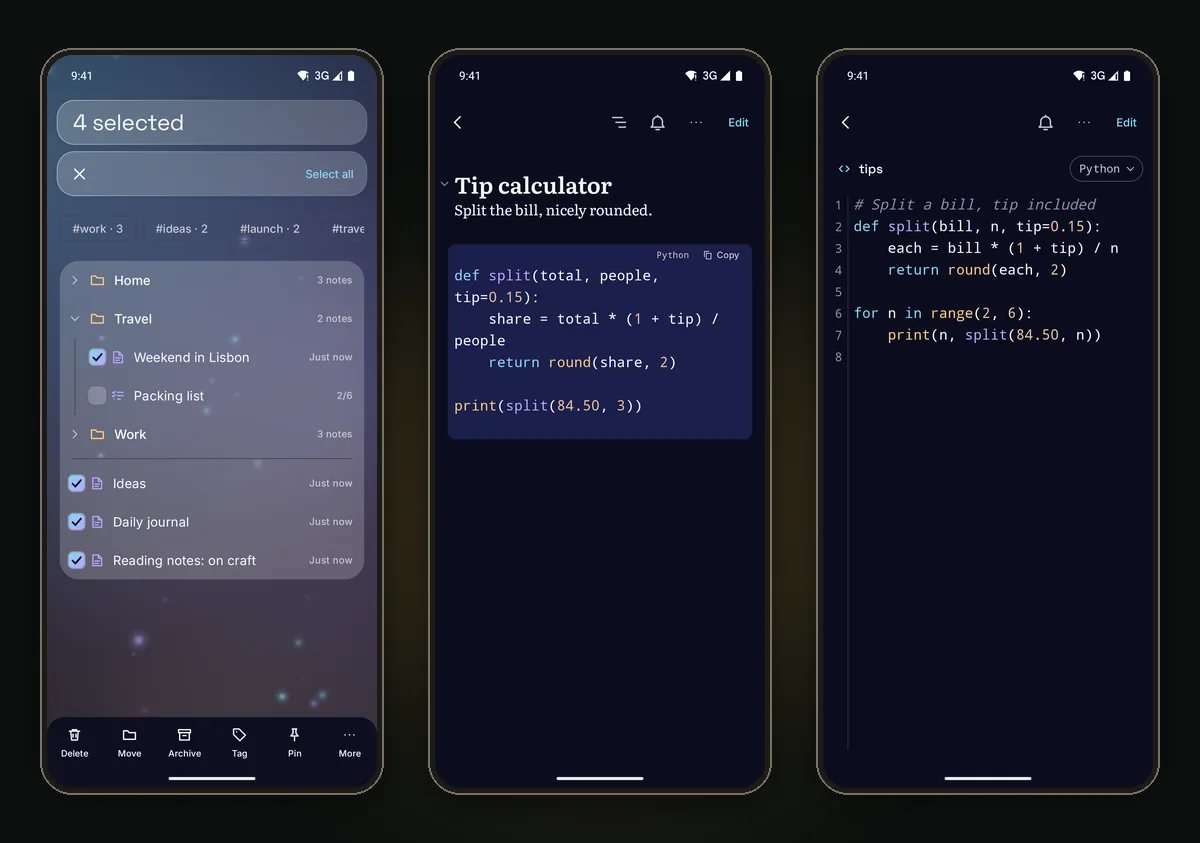
Hold a note and choose Select (or Select notes in the Library menu), then tick more, even across folders. Delete them with Undo, move, archive, tag, pin, favorite or color them, merge them into one note, copy them to a new folder, or export them as a zip of Markdown files. Exporting the selection as one PDF is Pro.
Code in color
- Code blocks are colored for 19 languages, each with its language and a Copy button. The colors stay in HTML and PDF exports.
- Typing code: a code row on Lupenote's keyboard, auto-indent, Tab and Shift-Tab, brackets and quotes that close themselves, a code block button and a Code indent setting.
- Code files: a note can be one code file, with line numbers and lines that scroll sideways, saved or shared as a real file such as
script.py. - Find and replace in any note, with Match case, Whole word and Pattern.
Build a PDF from scratch (Pro)
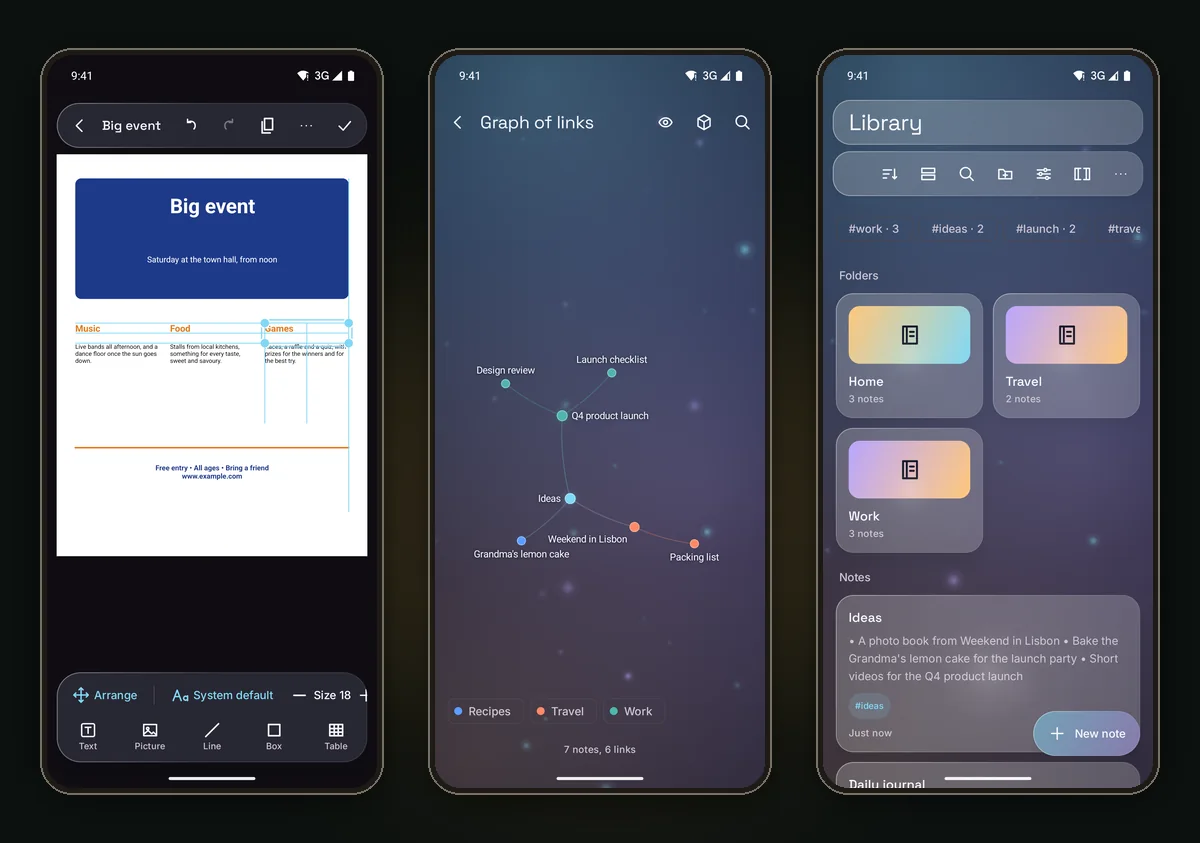
New PDF in the Library opens the PDF designer. Start from one of five layouts and add text, pictures, lines, boxes and tables, with a header and footer and page numbers. Guides and snapping line things up as you drag, a grid helps when you want one, and Arrange lines up, nudges and brings items forward or back. It saves a real PDF with real text, and Edit design opens it again.
Videos and note papers
- Videos in notes: add one from your gallery or record it with the camera. It plays inside the note or full screen, and it's kept in exports and backups.
- Note papers: 50 backgrounds for your notes, lined, squared, dotted, colored and themed. Plain paper and four others are free; the other 45 are Pro. Settings sets a default paper for new notes.
Tablets and wide screens
On a tablet or another wide screen, the Library sits beside the open note, PDFs show two pages side by side in landscape, and the keyboard grows to fit, with an optional split keyboard. On a phone turned on its side, a narrower Library steps aside while you type, with a handle to hide it.
New keyboards
17 new keyboard styles, each with its own sounds (Pro): Lily pad, Stones in moss, Still lake, Driftwood, Waffle, Cookie crunch, Topre, Buckling spring, Creamy, '80s computer, Rubber duck, Cartoon, Cyberpunk razor, Marker & stickers, Anime, Pop-it and Kinetic sand. That makes 42 styles, 4 of them free. Eleven of the original keyboards now wear photographed materials, and you can switch keyboard style from inside a note without leaving it.
A livelier graph of links (Pro)
The graph now colors your notes and shows their names, puts a spotlight on the one you tap, lets you drag notes around, and has a 3D view and a search that pans to a note. A Graph button sits in the Library bar.
Also new
- The Library's top slides away as you scroll down and comes back as you scroll up.
- The guided tour has 24 tutorials, with a new one on building a PDF, steps for selecting notes, code and find and replace, and steps that fit a phone on its side.
- Search results start with the words a reader sees, and notes that hold only a recording, a video or pictures say what they hold.
- Lupenote's keyboard notices text the app changes, so a cleared field starts with a capital again.
Your notes, settings and Pro carry over. Get the update on Google Play, and see the Lupenote page for new screenshots and short videos.
Thanks for writing with us. Tell us what you think at [email protected].
Obsidian Wolf
Comments
No comments yet. Be the first to say hello.