


This guide covers what Lupenote can do and where to find each thing. It describes version 1.1. Features marked (Pro) come with Lupenote Pro, a one-time purchase; everything else is free.
Getting started
- There is no account to make. Open Lupenote and start writing.
- A short welcome tour shows the main places. Settings has 24 short tutorials, one for each part of the app, and any of them can be played again.
- A note opens to read. Tap Edit to write and Done to read it again. Everything saves as you type; there is no save button.
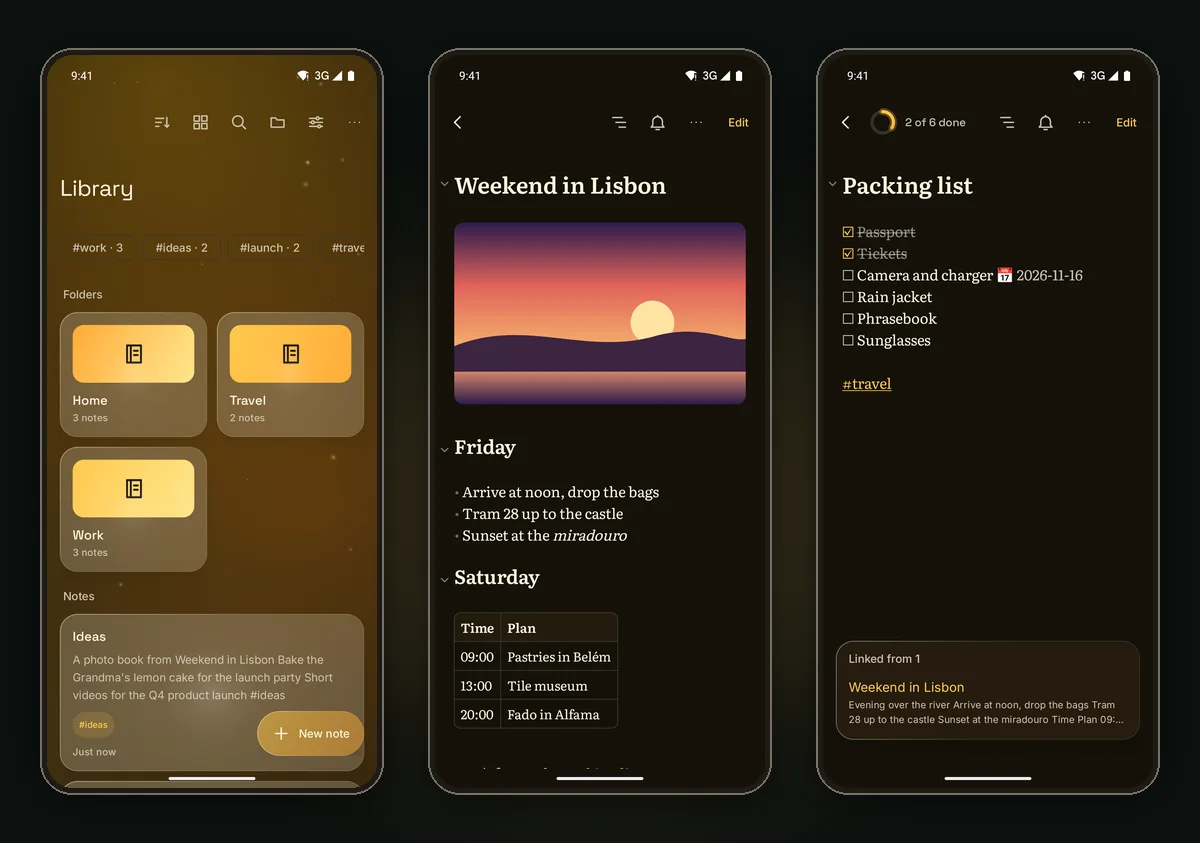
The Library
- New note starts a blank note, a code file, a note from a template (meeting notes, daily journal, weekly review, project brief, packing list, grocery list or reading notes), or a new PDF to design (Pro). Any note can become your own template (More options, Save as template).
- Layout: tap the layout button to switch between list, grid and browser (folders as a tree), or hold it to choose.
- Sort and filter: sort by last edited, newest, oldest or title. Show only unfinished checklists, notes with pictures, videos or recordings, PDFs, or one color.
- Hold a card to pin it, favorite it, give it a color, move it to a folder, lock it, archive it, pin it to the notification shade, select it, or move it to the trash.
- Folders can hold folders. A folder's menu renames, colors, moves or deletes it (its notes move up a level, nothing is lost).
- Tags show as chips above your notes; tap one to see its notes.
- The Library's title and buttons slide away as you scroll down and come back as you scroll up.
- The Library menu has Favorites, Tags, Archive, Trash, the graph of links, Select notes, Import, Settings and Pro. Archived notes stay searchable. The trash keeps notes for 30 days.
- Import brings in text, Markdown, JSON or PDF files.
Select several notes
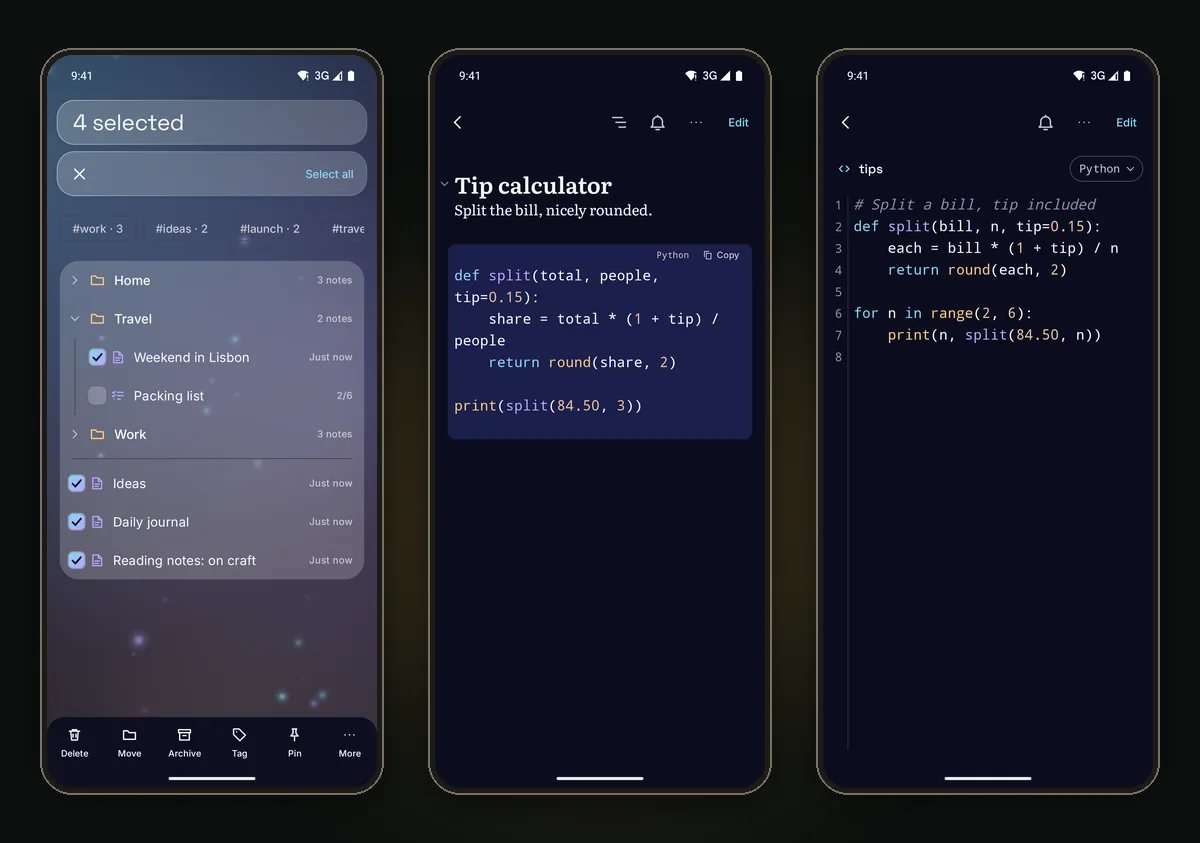
Hold a card and choose Select, or choose Select notes in the Library menu. Tick the notes you want, even in different folders, or use Select all. The bar at the bottom then works on all of them at once:
- Delete (with Undo), move, archive, tag, pin, favorite or color them.
- Merge them into one note, in the order you ticked them.
- Copy to a new folder.
- Export them as a zip of Markdown files, or as one PDF (Pro).
Press Back to stop selecting.
Writing
- The toolbar has heading, bold, italic, bullet list, task list, indent, outdent, undo and redo. Its menu adds numbered list, strikethrough, link, code block, picture, template, find, and find and replace.
- Notes are plain Markdown underneath. The marks hide while you write; turn on Show Markdown from a note's menu (or in Settings) to see them.
- Lists carry on when you press Enter. Enter on an empty item ends the list. Numbered lists renumber themselves.
- Tables are drawn as tables when you read. Long sections fold away under their heading, and the outline jumps to any heading.
- Add to the note: a picture, a photo from the camera, a video from your gallery or the camera (up to 100 MB each), or a voice recording. Videos play inside the note or full screen. On phones that support it, the words you speak in a recording are written out, on the phone.
- Find and replace (toolbar menu): Replace one match or Replace all (undone in one step), with Match case, Whole word and Pattern.
- Paper: give a note a background, lined, squared, dotted, colored or themed, from the toolbar or More options, Paper. There are 50; plain paper and four others are free, the rest are Pro. Settings, Writing, Paper for new notes sets the default.
- More options has note info (words, characters, reading time, dates, folder, tags), duplicate, version history and share.
- A note can have its own font (toolbar). Text size and line spacing are in Settings.
Code
- Code block (toolbar, or the keyboard's tools): makes a block at the cursor, or around the lines you picked, in the language you choose. Blocks are colored for 19 languages, while reading and writing, and the colors stay in HTML and PDF exports.
- While reading, each block shows its language and a Copy button that copies just the code.
- Inside a block, Enter keeps the indent, brackets and quotes close themselves, Tab indents, and the matching bracket is marked. Lupenote's keyboard shows a code row (Tab, brackets, quotes and marks) and leaves out capitals, suggestions and corrections. Settings has the code indent.
- Code files: New note, Code file. A code file shows its name (tap to rename) and its language (tap to change), with line numbers, and long lines scroll sideways instead of wrapping. Share saves or sends it as a real file, like
script.py.
Checklists
- Make one with the task list button, or as a new checklist from the Library or a widget.
- Tick items while reading or writing. Hold an item to drag it. Settings can move checked items to the bottom.
- The strip above the keyboard gives an item a due date (today, tomorrow, in a week, or a date you pick) and a reminder. Overdue items show in red, and the reminder has a Done button.
- Tap the progress ring for the checklist sheet: untick everything now, see the history of each round, and set the list to untick itself every day, week or month (Pro).
Links and tags
- Type
[[and pick a note's title, or use Link a note. You can link a title that doesn't exist yet; tapping it offers to make the note. - The end of every note shows Linked from: the notes that link to it. Rename a note and its links follow.
- Type
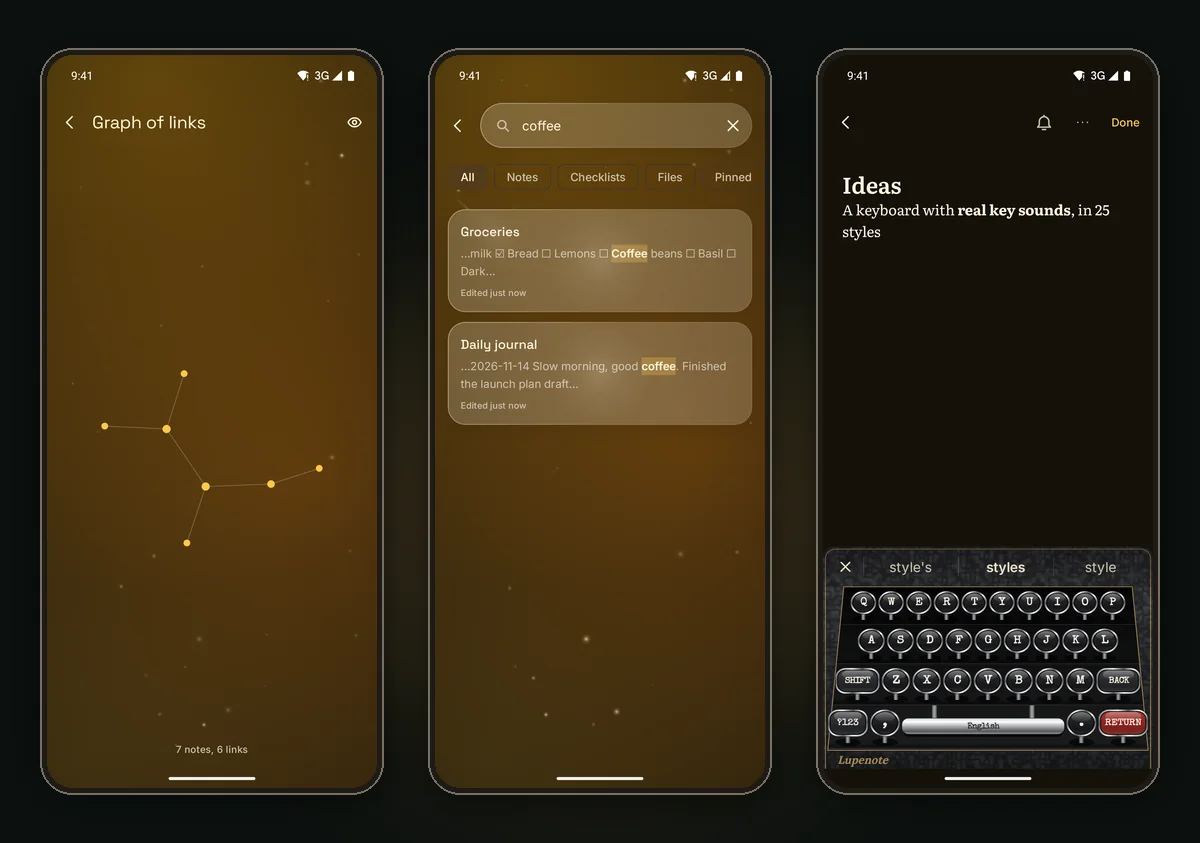
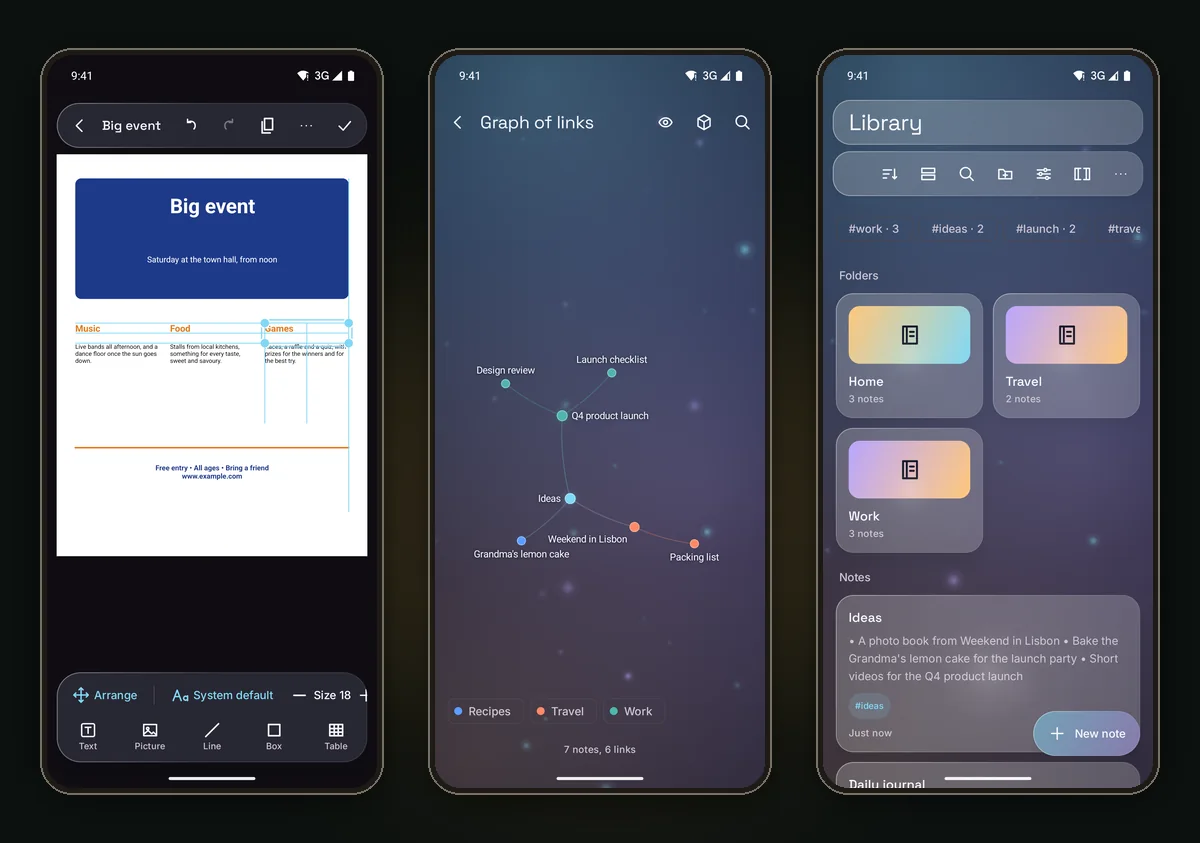
#wordto make a tag. Tags can nest (#work/plans). The Tags screen renames a tag or removes it from every note. - The graph of links (Pro), from its button in the Library bar or the Library menu, draws your notes as dots with their names, colored by notebook, and their links as lines. Pinch and pan, and drag a note to move it. Tap a note to put it and its links in the spotlight, with a card that opens it. Search finds a note and takes you to it, and the 3D view turns the whole graph around.
Reminders
The bell at the top of a note sets a reminder: in an hour, this evening, tomorrow morning, next week, or a date and time you pick. Reminders can repeat daily, weekly, monthly or yearly (Pro). Allow exact timing when asked and they ring on the minute. The notification can open the note, snooze or mark it done.
Search
Search from the Library. It looks through titles and text, PDFs, scanned pages and the words in your pictures (marked "In a picture"), and the archive too. Filter by notes, checklists, files or pinned. A PDF opens at what you searched for. Locked notes are never searched.
PDFs
- Add PDFs to the Library, or open one from another app. Scroll and zoom, go to a page, switch to dark pages, find, select and copy text, and open PDFs locked with a password. On a wide screen, two pages show side by side (Two pages in the menu turns it off).
- Text to note copies all pages, this page or some pages into a new note. Scanned pages are read automatically, so find, search and Text to note work on them too.
- Edit (Pro): highlight, underline or strike through in eight colors, draw with the pen (pressure-aware with a stylus), add text boxes and notes on the page, erase and undo. The original file never changes. Share or print a copy with your edits drawn in, or share the original.
- Organize pages (Pro): pick pages in the page grid to turn, move, delete or extract them, and add pages from the Library, a file or a blank page. It saves as a new PDF.
- Forms and signatures (Pro): fill in a form's fields, and draw your signature and initials once (kept on this phone only), then place, drag and resize them on the page.
Build a PDF from scratch (Pro)
- In the Library, choose New note, then New PDF.
- Pick the page size, orientation and margin, and one of five starting layouts.
- Add text, pictures, lines, boxes and tables from the tools. Tap a block to pick it, drag to move it, drag a corner to resize it, and double-tap to write in it. The picked block's font, size, color and stroke are in the tools too.
- Blocks snap to the margins, the middle of the page and each other, and guide lines show what they line up with. Show grid adds a grid. Arrange lines a block up with the margins, nudges it, or brings it forward or sends it back.
- The pages strip adds, moves and deletes pages, and holds page setup and a header and footer with page numbers.
- Done saves a real PDF, with real text, in your Library. To change it later, open it and choose Edit design from its menu.
Share, export and print
From a note's More options, share it as Markdown, plain text or an HTML page, save it as a file, or print it. Make a PDF (Pro) turns the note into a PDF in its own font, with the paper (A4, Letter, Legal or A5) and margins you choose. To share many notes at once, select them and export them as a zip, or as one PDF (Pro).
The Lupenote keyboard
- It opens in every text field in Lupenote. Settings can switch back to your phone's own keyboard.
- Styles and sounds: 42 styles, each with its own key sounds; 4 are free. Change the style in Settings, or from inside a note: More options, Keyboard, beside Paper. Sounds can be off, or allowed on silent.
- Languages: choose from 39 in Settings; the globe key switches between them. Japanese turns romaji into kana and kanji.
- Drag typing, word suggestions and autocorrect (Back undoes a correction), and emoji with search and skin tones.
- Your words: add words or import a list. Learning new words is off unless you turn it on.
- In a note, the tools key opens formatting, alignment, link a note, tags, pictures and the code block. In a code block, the code row takes over.
- On a wide screen in landscape, the keyboard can split in two, from the tools or Settings.
Tablets and wide screens
On a tablet, or a large phone on its side, the Library stays on the left and the note you open shows beside it. The handle between them hides the Library and brings it back, and on a phone on its side the Library also steps aside while you type. The keyboard grows to fit the screen, and PDFs show two pages side by side.
The look
Settings has system, light or dark, 12 color themes, glass intensity, effects (off, subtle or full), reduce motion, the font picker with 90 fonts (10 of them free), and the paper for new notes.
Home screen
- The quick note widget starts a note or a checklist, or a search.
- (Pro) widgets for pinned and recent notes, a checklist you can tick, a voice note-to-self, one chosen note, and a sticky calendar where each day opens as a sticky note; and a Quick Settings tile for a new note from anywhere.
- Hold the app icon for new note, search and your last two notes. Share text, pictures, videos and PDFs into Lupenote from other apps.
Lupenote Pro
Pro adds writing on and signing PDFs, organizing pages, notes into PDFs (one note, or several selected notes as one PDF), building PDFs from scratch, the graph of links, repeating checklists and reminders, the extra widgets and the tile, and all fonts, color themes, note papers and keyboard styles. It's one purchase through Google Play, never a subscription. The Pro page is in the Library menu and Settings, and it restores your purchase on a new phone.
Keeping your notes safe has its own guide: locks, backups and moving to a new phone. Questions? Write to [email protected].

Comments
No comments yet. Be the first to say hello.